
If there were memorized reports in the client’s QuickBooks Desktop file, you’d need to create them as customized reports in QuickBooks Online too.
To do this:
- Select Reports from the left-hand navigation. This opens the Reports center
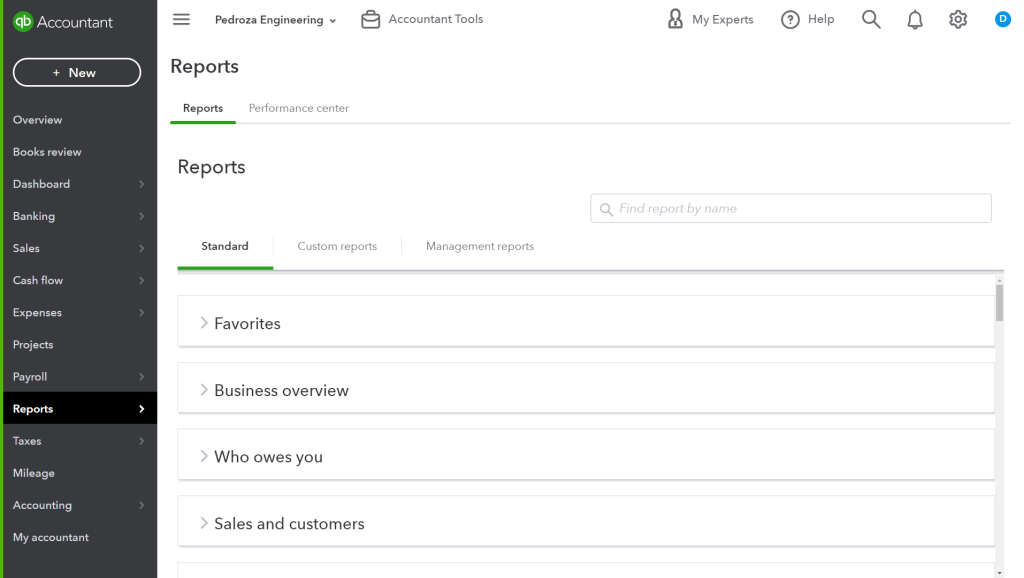
Find a report that will form the basis of the one you need to create and customize
For example, let’s say that you want to run a Profit and Loss report for the year to date, with a separate column for each month. To do this, you’d want to start by running a Profit and Loss report with the default settings.
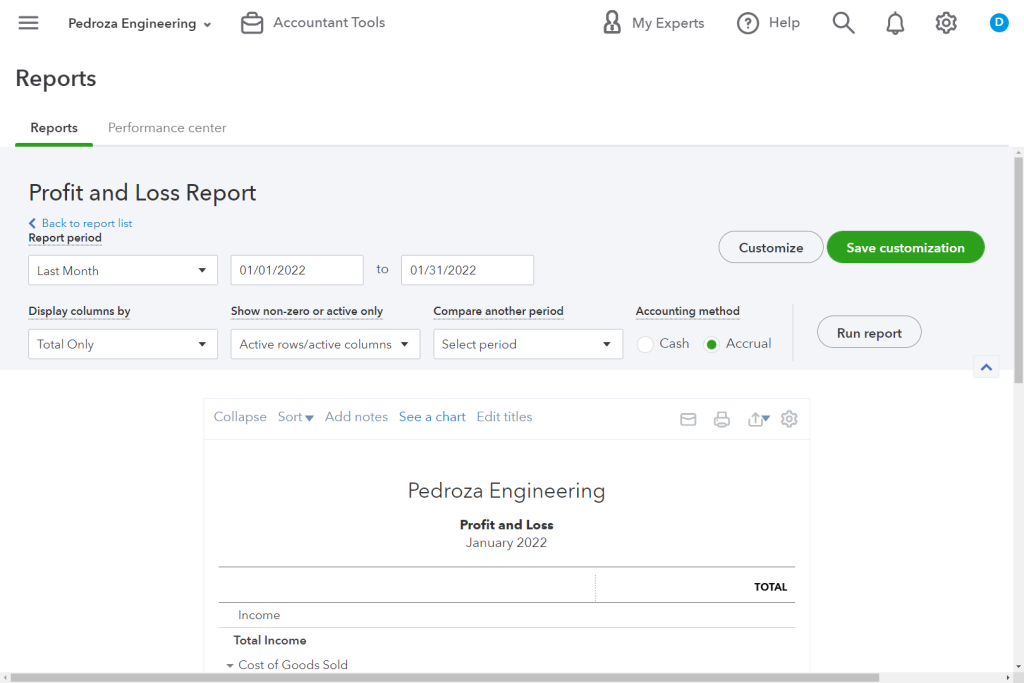
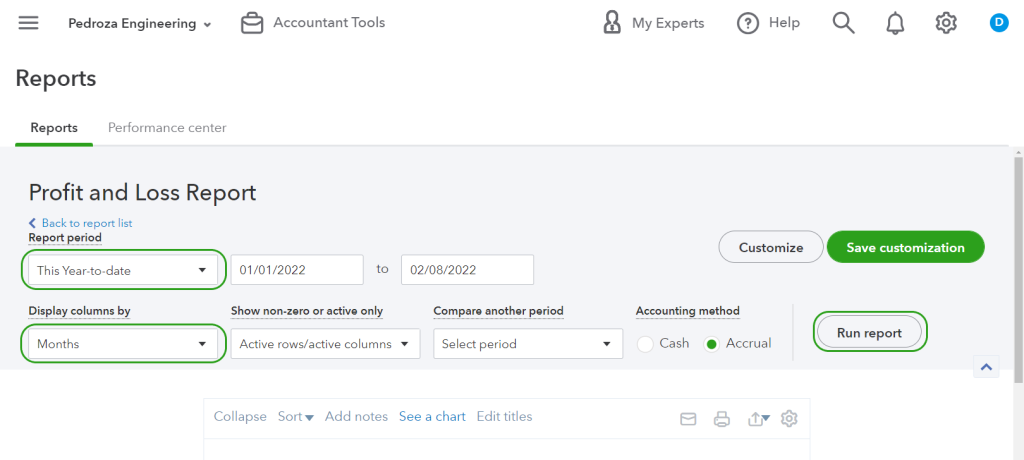
- Customize the report to suit your client’s requirements
In this example, you’d change the reporting period to This year to date, and select Months from the “Display columns by” dropdown - Then select Run report
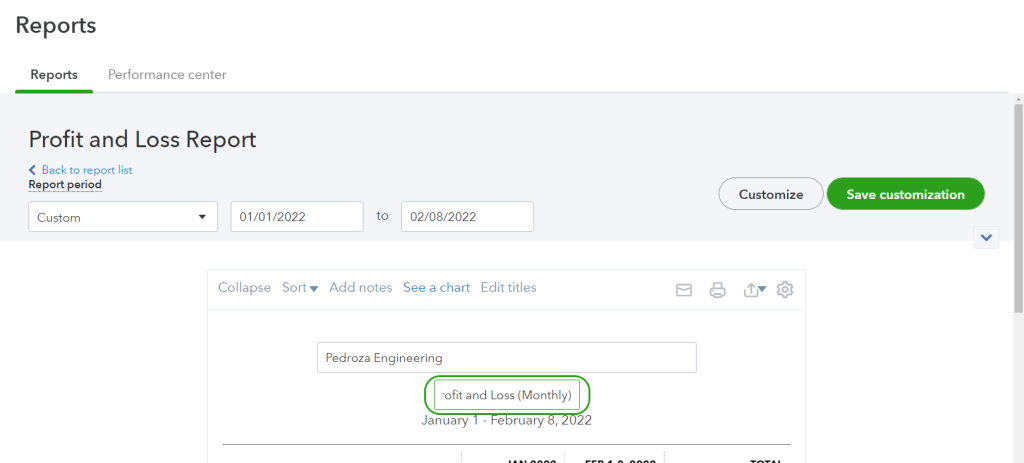
Select the Pencil icon to edit the report name
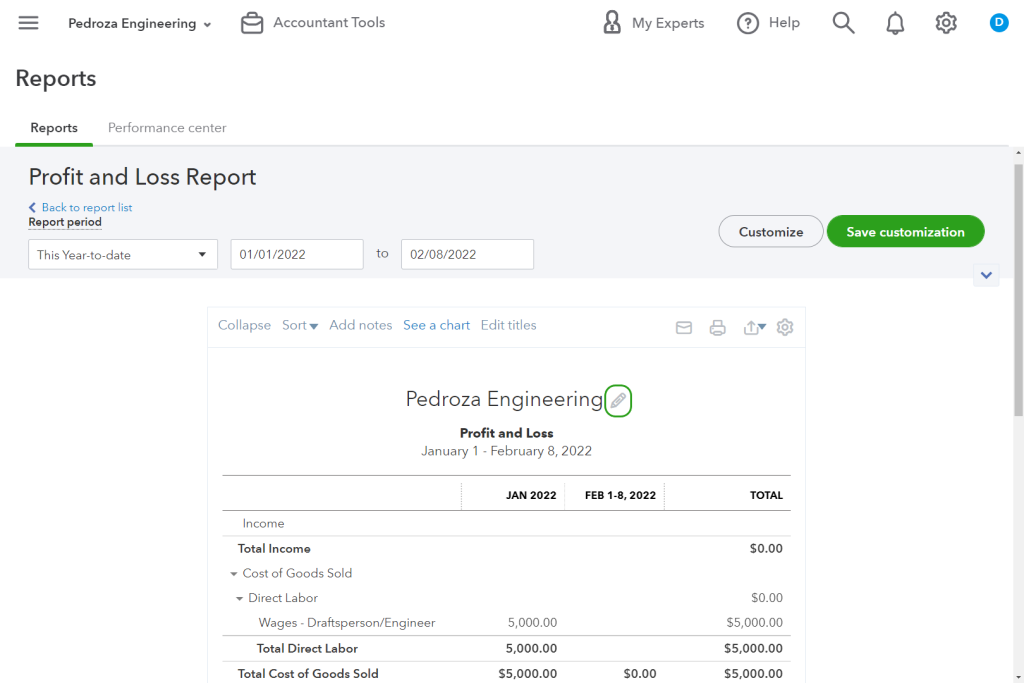
- Give the report a unique name so that you can easily identify it in the Custom reports list
- When you’re ready, select Save customization
Resources
For more detailed guidance and instructions, check out this article on how to customize reports in QuickBooks Online.